1. Try adding a customized company page (URL).
Only those accounts that belong to the company (group) will be able to log in through this page.
www.remotemeeting.com/rm/[custom URL]
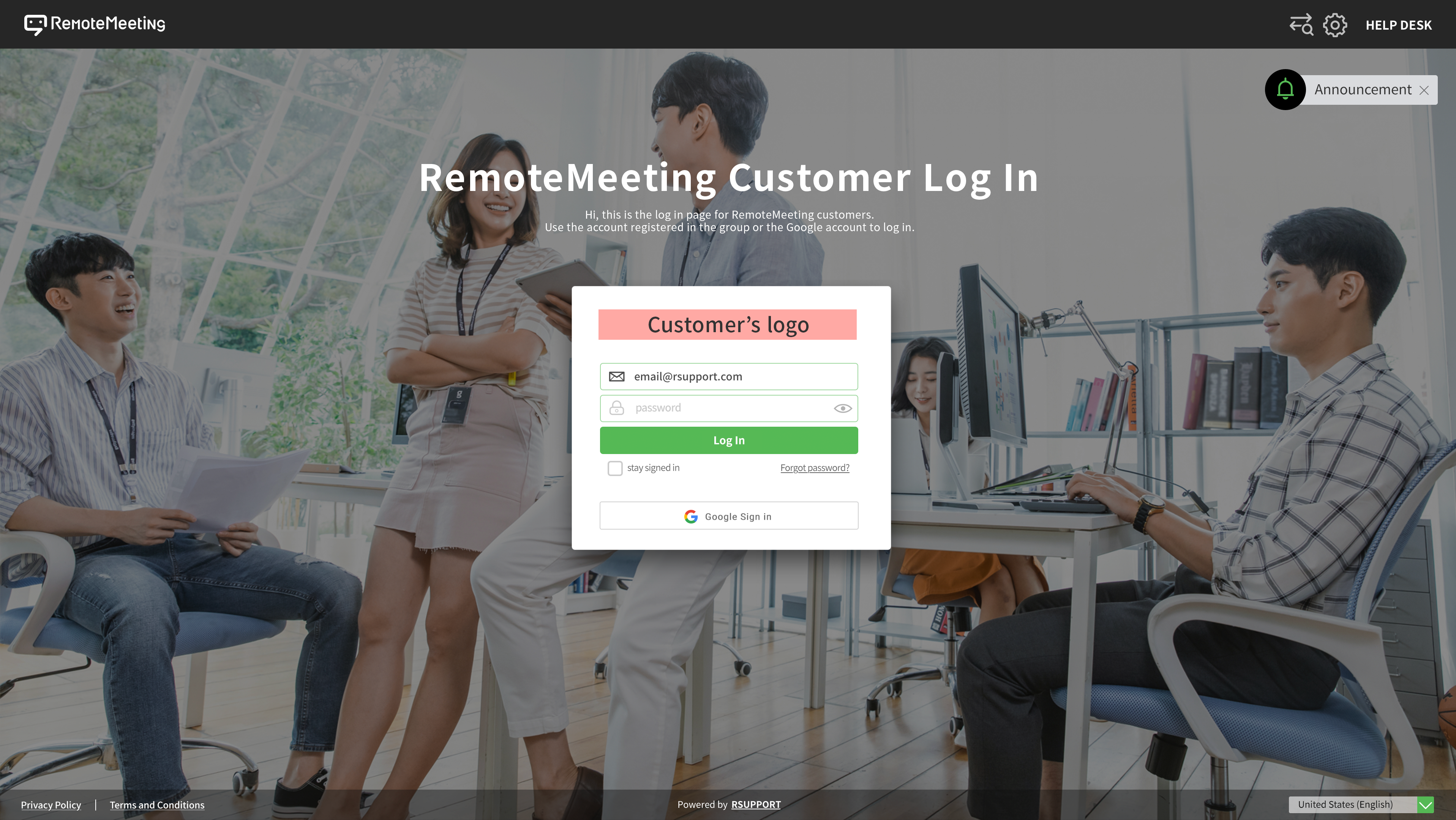
How to Use
① Log in to www.remotemeeting.com with Admin account.
② Go to Admin page > Group information
③ Add / configure the custom URL (www.remotemeeting.com/rm[custom URL])
2. Register your company LOGO.
Upload the company LOGO image to offer a more familiar identity and a feeling of your own system.
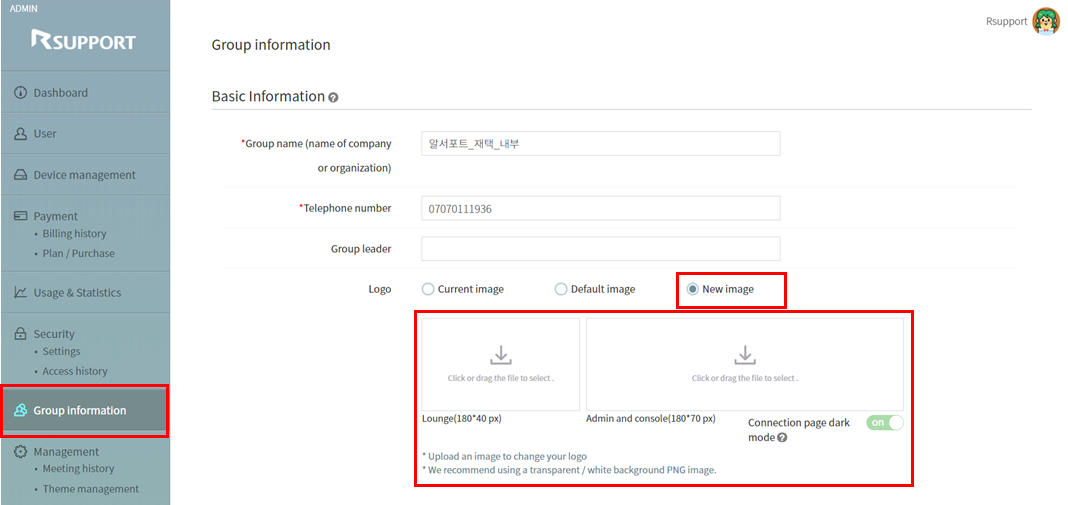
How to Use
① Log in to www.remotemeeting.com with Admin account.
② Go to Admin page > Group information
③ Select “New Image” > press “Upload” or drag to add a new image file.
④ Press SAVE.
(E.g.) Changed logo

3. Change the theme of the meeting room.
You can select the theme or the 99 rooms by group, project or by user.
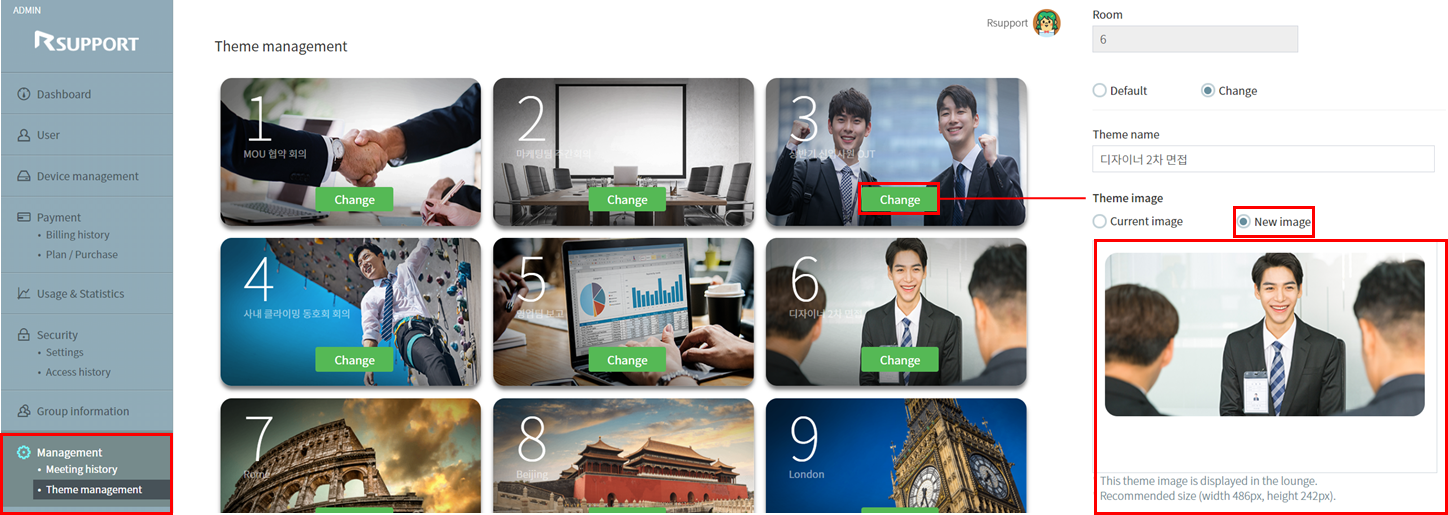
How to Use
① Login to www.remotemeeting.com with Admin account.
② Go to Admin page > Management > Theme management
③ Press “Change” button on the room to change the theme.
④ Select Change > set a new name and select a new image.
⑤ Press SAVE
(E.g.) Changed logo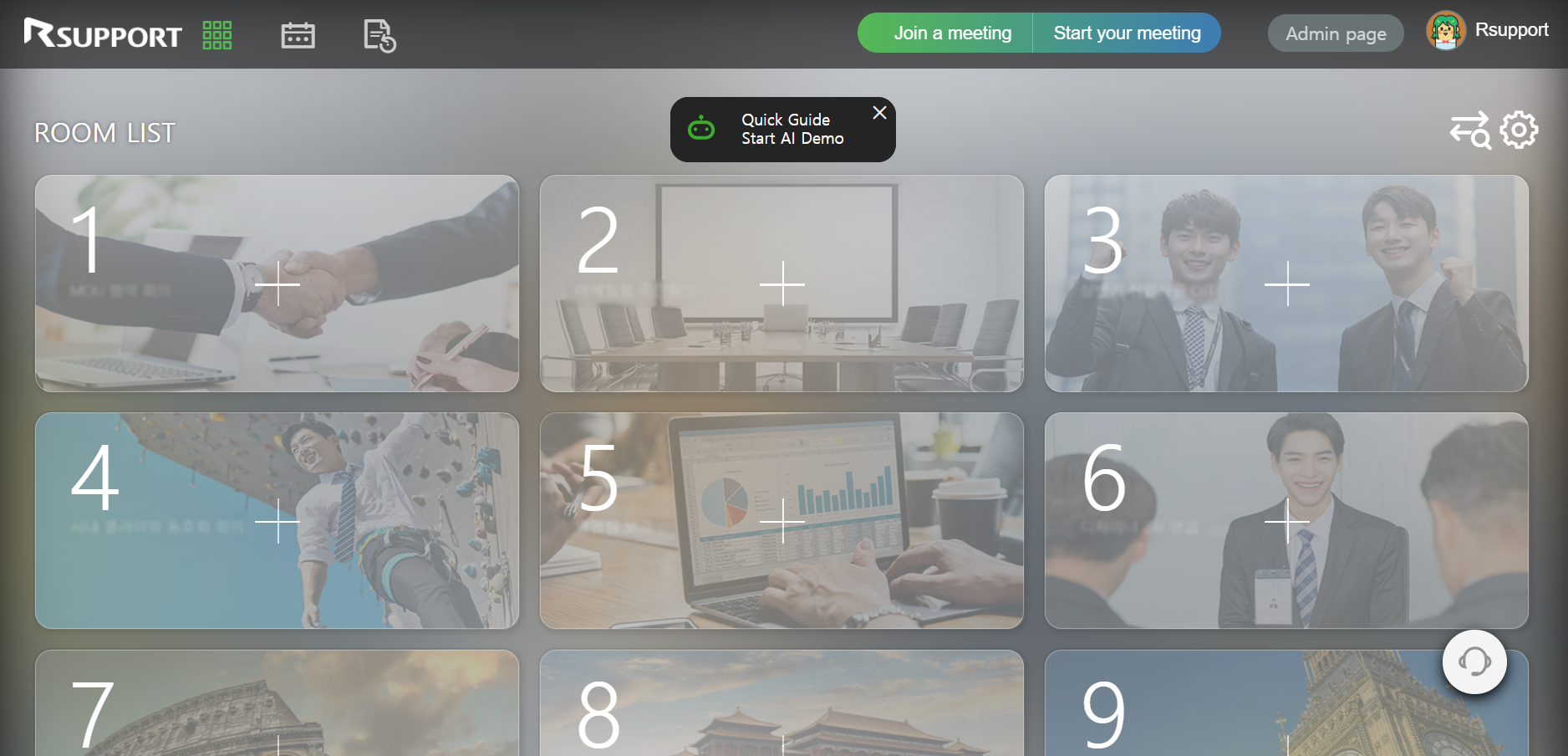
* This feature is available to PAID customers using Enterprise version.
* Only the accounts from the same group will be able to log in through the custom URL.